What is IMAP Server? A Complete Email Access Guide
Email remains one of the most widely used communication systems in the world. According to The Radicati Group Email Statistics Report 2024 to 2028, more than 361.6 billion emails are sent and received per day in 2024, and that number is projected to grow to 376.4 billion in 2025.
The same report estimates that global email users will reach 4.89 billion by 2027. Email is not declining. It continues expanding across business, government, and consumer communication.
With that scale of communication, message synchronization across devices becomes critical. This is where the question arises: what is an IMAP server, and why does it matter in modern IT environments?
An IMAP server is a core component of email server software, responsible for storing messages centrally and synchronizing them across multiple devices.
This guide explains how IMAP works, where it fits in mail architecture, how it compares with POP3, how it is secured, and how organizations deploy it in enterprise systems.
So, let’s dive right in!
What is an IMAP Server?
IMAP stands for Internet Message Access Protocol. It is defined in RFC 3501 by the Internet Engineering Task Force.
An IMAP server is a type of email server that operates using the IMAP protocol, one of the most widely adopted email protocols for retrieving email messages from a mail server.
Basically, an IMAP server stores email messages on a mail server and allows clients to access and synchronize those messages across multiple devices.
In practical terms:
- Emails remain stored on the server
- Devices connect to the server to retrieve messages
- Message state remains consistent everywhere
Because emails remain on the server, users can access them from any configured email client linked to the same email account.
If a user reads a message on a smartphone, it appears as read on a desktop email client as well. That consistency happens because the IMAP server maintains mailbox state centrally.
IMAP retrieves and manages email. It does not send it. Sending is handled by SMTP, formally known as the Simple Mail Transfer Protocol, which operates separately in the mail delivery process.
How Email Architecture Works
Understanding IMAP requires context about how email travels across networks.
Email delivery depends on several components working together.
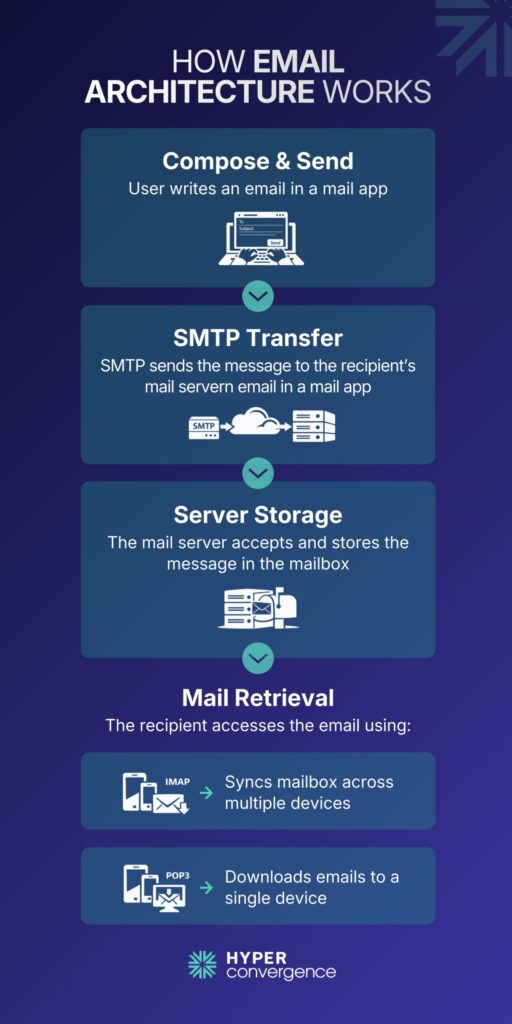
High-Level Email Flow
- A user composes and sends an email.
- SMTP transfers the message to the recipient’s mail server.
- The receiving server stores the message on the email server.
- The recipient retrieves incoming mail using IMAP or POP3.
SMTP handles outgoing mail and server-to-server transfers using the Simple Mail Transfer Protocol. IMAP handles mailbox access and synchronization.
Core Mail Components
- Mail Transfer Agent
The Mail Transfer Agent routes email between servers. Examples include Postfix and Sendmail.
- Mail Delivery Agent
The Mail Delivery Agent places incoming messages into user mailboxes.
- Mailbox Storage
Messages are stored on the server using formats such as Maildir or mbox. Storage design influences performance and backup strategies and ensures new messages remain available across devices.
Why IMAP Was Created
POP3 was designed when users accessed email from one local device. Messages downloaded locally often disappeared from the server.
Today, people use multiple devices daily. According to Statista, mobile devices account for more than 55% of global web traffic.
That shift required consistent synchronization across platforms. IMAP addressed this need by keeping messages on the server and allowing multiple clients to interact with the same mailbox state across different devices.
How IMAP Works
IMAP follows a client-server model as follows:
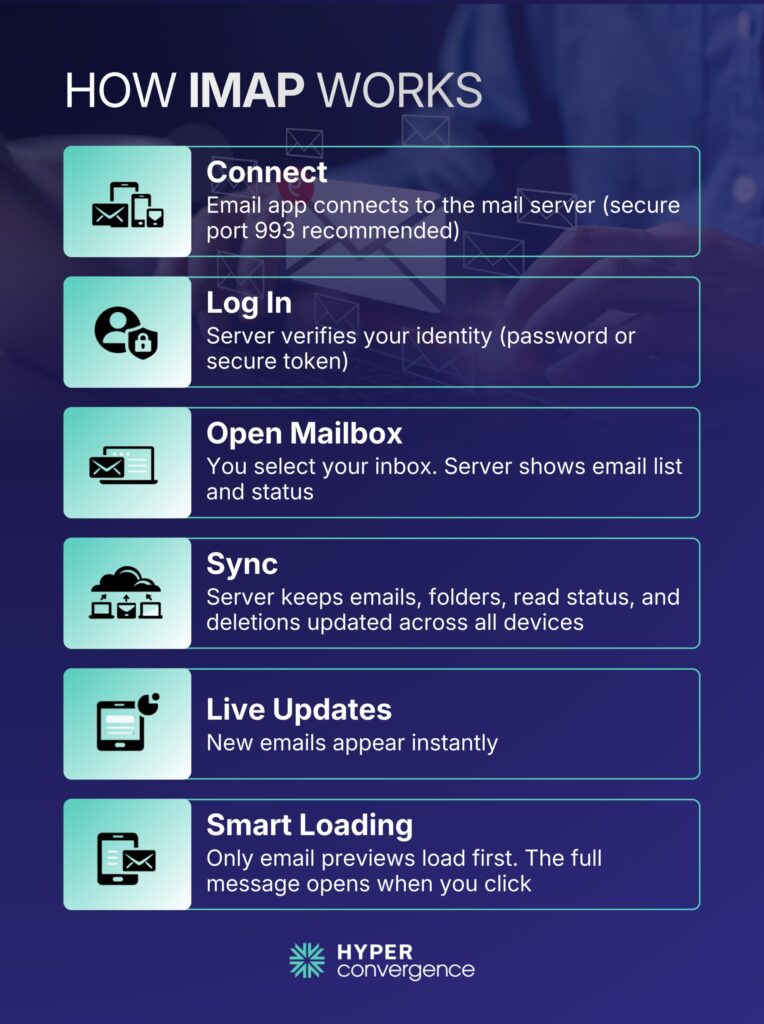
Step 1: TCP Connection
The client connects to the IMAP server through TCP over an internet connection provided by the internet service providers.
Default ports:
- 143 for standard IMAP
- 993 for encrypted IMAPS
Port 993 is recommended for production systems.
Step 2: Authentication
The server verifies credentials using:
- Username and password
- OAuth 2.0 tokens
- SASL authentication
- Multi-factor authentication
Modern cloud platforms and internet service providers increasingly restrict basic authentication and require token-based methods.
Step 3: Mailbox Selection
The client selects a mailbox such as INBOX. The server returns metadata, including message count and unread status, along with indicators for new messages.
Step 4: Synchronization
IMAP tracks:
- Read and unread status
- Message flags
- Folder changes
- Deletions
- Draft messages
The server maintains this information centrally and allows you to access synchronized mailboxes from different devices without losing state.
Real Time Updates
IMAP supports the IDLE command, which allows the server to notify clients when new mail arrives. This reduces unnecessary polling and improves efficiency.
Partial Retrieval
IMAP retrieves headers first. The full message downloads only when opened. This approach conserves bandwidth and improves responsiveness for large mailboxes.
Key Features of an IMAP Server
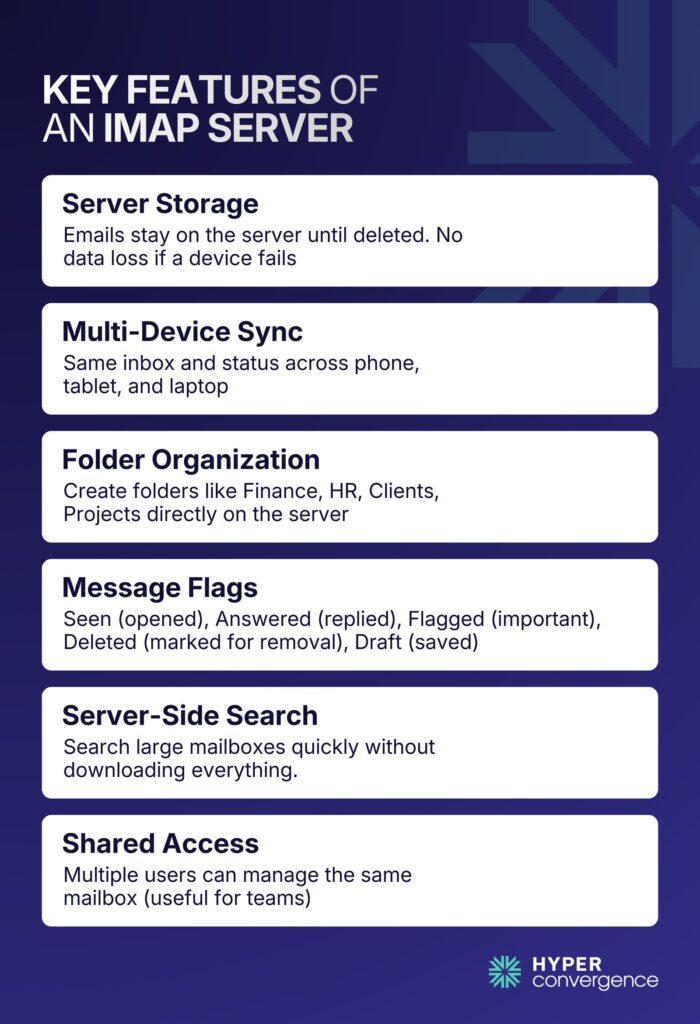
IMAP supports several capabilities critical to modern email usage, such as:
- Server Side Storage
Emails remain stored on the server until deletion. Device failure does not remove historical messages.
- Multi-Device Synchronization
A manager may review messages on a tablet during travel and later continue work from a laptop. The mailbox state remains consistent.
- Folder Management
Users can create structured folders such as:
- Finance
- HR
- Clients
- Projects
These folders exist on the server.
- Message Flags
| Flag | Meaning |
| Seen | Message Opened |
| Answered | Replied |
| Flagged | Marked Important |
| Deleted | Marked for Removal |
| Draft | Saved Draft |
- Server Side Search
IMAP allows searching directly on the server. This is particularly useful for mailboxes containing thousands of messages.
- Concurrent Access
Shared mailboxes allow teams to manage a common inbox. Support departments often rely on this structure.
IMAP Ports and Encryption
Security is central to the mail infrastructure.
- Port 143: Port 143 allows unencrypted IMAP sessions. Credentials may travel in plain text.
- Port 993: Port 993 supports encrypted IMAPS sessions using SSL or TLS. Encrypted connections protect credentials and message content in transit.
According to the Verizon 2023 Data Breach Investigations Report, 74% of breaches involve the human element, including credential theft and misuse.
However, encrypted IMAP connections reduce exposure to credential interception.
Types of IMAP Servers
Organizations choose IMAP solutions based on operational needs. Here are the key types of IMAp servers used widely:
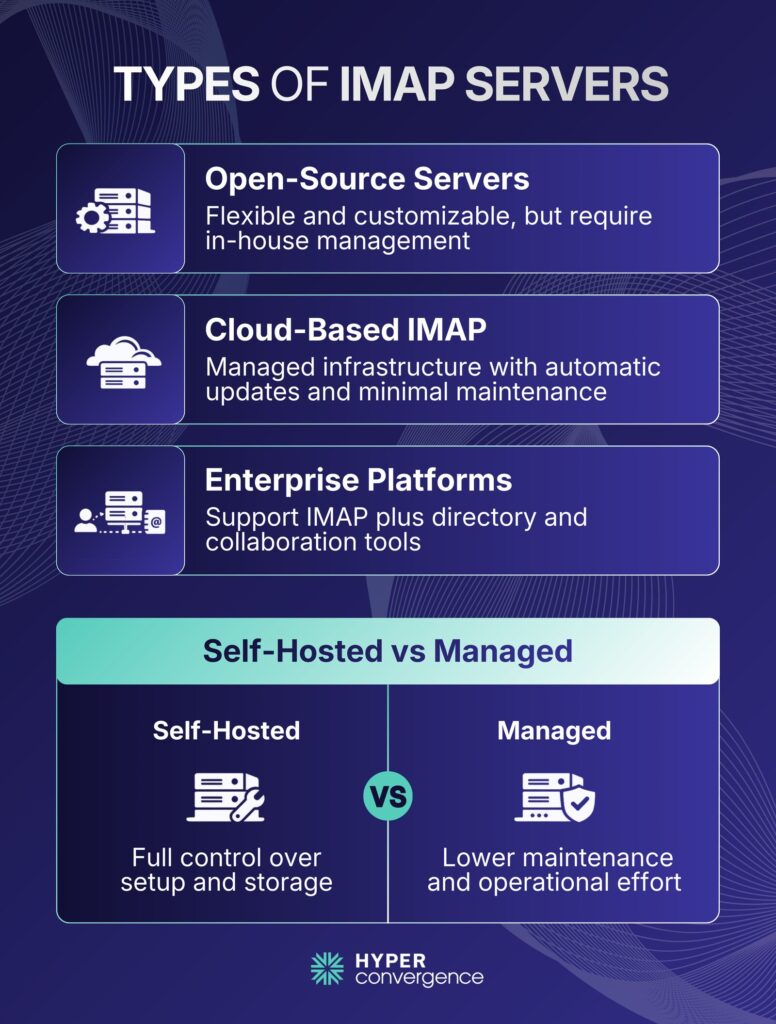
Open Source IMAP Servers
Examples include:
- Dovecot
- Cyrus IMAP
- Courier
These require administrative oversight but offer flexibility.
Cloud-Based IMAP
Providers such as:
- Google Workspace
- Microsoft 365
- Yahoo Mail
offer managed infrastructure and automatic updates.
Enterprise Platforms
Microsoft Exchange and Zimbra support IMAP alongside directory and collaboration services.
Self-Hosted vs Managed
Self-hosted systems provide control over storage location and configuration. Managed services reduce maintenance overhead.
What IMAP Is Used for? Practical Use Cases
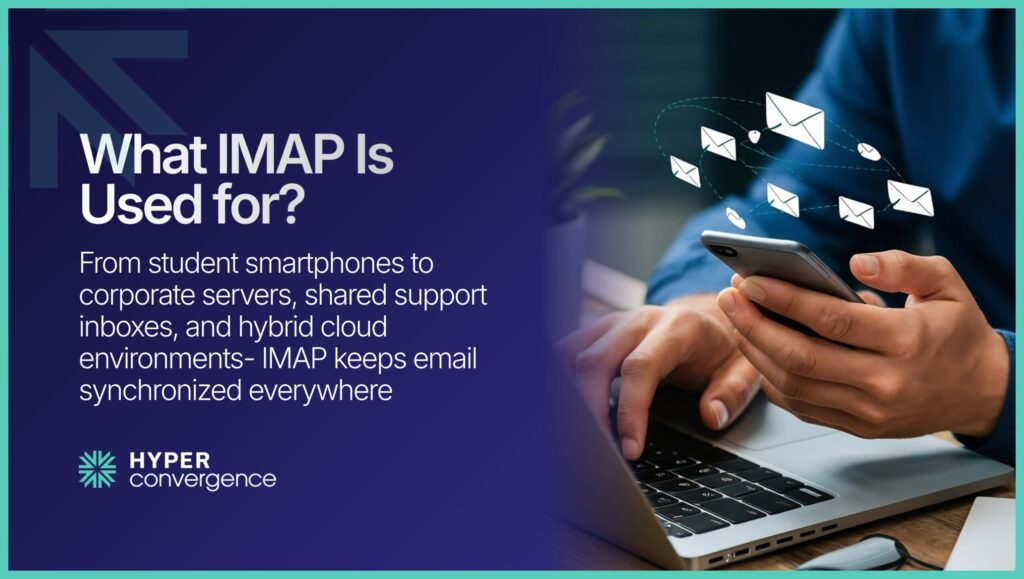
IMAP supports diverse scenarios, including practical use cases as follows:
Personal Email: A student checks email on a smartphone and later opens the same inbox on a home computer. Read status remains synchronized across multiple devices and allows users to access your email from anywhere.
Business Infrastructure: Companies deploy IMAP servers to support employee communication. Teams rely on simultaneous access so multiple staff members can review the same conversations without conflict.
Shared Mailboxes: Customer support teams monitor addresses such as support@company.com. When one agent reads a message, others see that status. This shared visibility allows multiple mailboxes to operate efficiently from the same remote server.
Hybrid Cloud: Enterprises combine on-premises servers with cloud mail services. IMAP maintains compatibility across systems and works with major email providers to centralize email data securely.
IMAP vs POP: What are the Main Differences?
IMAP, or Internet Message Access Protocol, allows users to access and synchronize email directly from the mail server. Messages remain stored on the server, and all connected devices reflect the same mailbox state. In technical terms, IMAP defines how clients communicate with a mail server using an established Internet protocol.
POP3, or Post Office Protocol version 3, retrieves email from the server and typically downloads it to a single device. In many default configurations, messages are removed from the server after download, leaving only downloaded emails on the local system.
Although both protocols retrieve email, they belong to a broader category of email retrieval protocols, yet their design philosophies differ significantly.
Here are the key differences at a glance:
| Feature | IMAP | POP3 |
| Storage Location | Messages stored on the server | Messages stored locally on the device |
| Multi-Device Sync | Full synchronization across devices | Limited synchronization |
| Folder Support | Supports server-side folders | No native folder management |
| Default Behaviour | Keeps messages on the server | Messages automatically downloaded and may remove them |
| Business Suitability | Suitable for teams and shared inboxes | Best for single-user setups |
Pros and Cons of IMAP
IMAP servers are widely used in modern email systems because they support centralized and synchronized access. However, like any protocol, they come with trade-offs.
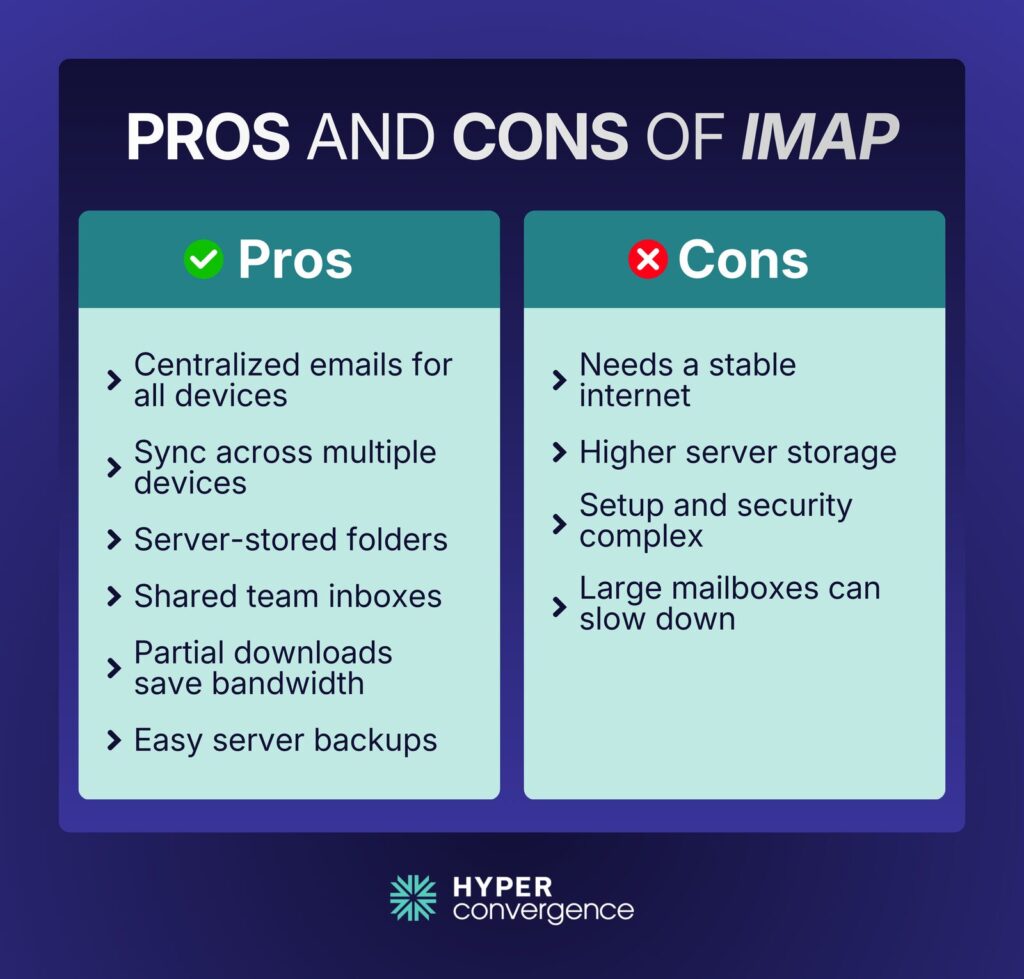
Advantages of IMAP
- Centralized storage
All emails remain on the server, which keeps mailbox data consistent across devices and protects sensitive email data through centralized policies. - Multi-device synchronization
You can access your email in the same mailbox from a phone, laptop, or tablet without losing message status or folder structure. This is especially important when the user clicks on a message from different devices and expects the same read status. - Server-side folder management
Custom folders and hierarchies are stored on the server, not just on one device. - Shared mailbox support
Multiple users can access and manage a single inbox, which is useful for support or sales teams. - Partial message retrieval
Clients can download only headers or selected content, which reduces bandwidth usage on mobile networks. - Backup and recovery advantages
Since messages remain on the server, administrators can apply centralized backup policies and optimize server space usage efficiently.
Limitations of IMAP
- Internet dependency
Real-time synchronization requires a stable internet connection to the remote server. Offline access depends on local caching. - Higher server storage requirements
All messages remain on the server, which increases storage costs at scale. - Administrative complexity
Configuration of imap settings, quota management, and security controls requires careful setup. Organizations must protect email credentials during authentication processes. - Performance impact with large mailboxes
Mailboxes containing tens of thousands of messages may experience slower synchronization unless properly indexed.
For example, Google allocates 15 GB of storage per Gmail account across email and other services. This illustrates how mailbox storage expectations have grown and why capacity planning is important for organizations running their own IMAP infrastructure. Many email providers allow administrators to enable imap manually within account settings to activate synchronization features.
How Does Sending and Receiving Emails Work with IMAP?
Although many users associate IMAP with email generally, it handles only retrieval within modern email retrieval protocols.
Sending Email
SMTP manages outgoing mail. The client sends the message to the SMTP server, which routes it across the Internet after verifying email credentials.
Receiving Email
After the recipient server stores the message, IMAP retrieves it.
Therefore, SMTP and IMAP work together but perform distinct tasks.
Security Considerations for IMAP Server
Security planning is critical for IMAP deployments. Here we talk about the key security concerns:
- Authentication
Modern systems support OAuth 2.0 tokens in addition to passwords. OAuth reduces credential exposure risks.
- Rate Limiting
Servers should limit repeated login attempts. This reduces brute-force attack success rates targeting a remote server.
- Certificate Management
TLS certificates must match server hostnames. Expired certificates interrupt client connectivity alongside secure internet protocol communications.
- Monitoring and Logging
Administrators review logs for unusual login patterns and monitor email data access activity. Automated alerting systems can detect suspicious activity.
In regulated industries such as healthcare or finance, additional compliance standards may apply, including HIPAA or GDPR.
How to Set Up an IMAP Server
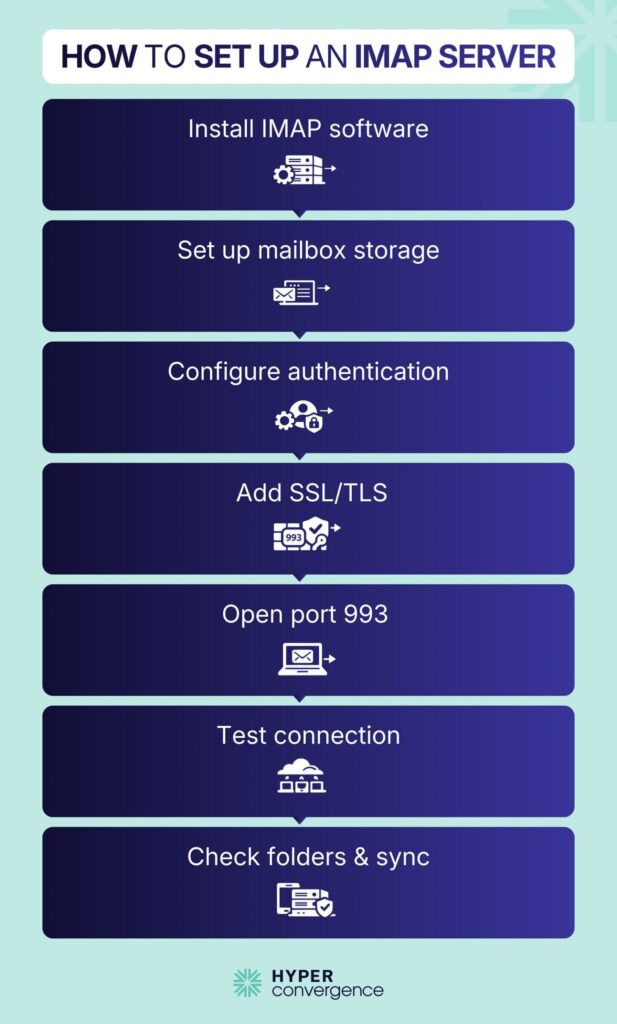
Setting up an IMAP server requires proper planning and configuration. Here’s how to do it:
Core Components
- Linux server
- IMAP software such as Dovecot
- Mail Transfer Agent, such as Postfix
- SSL/TLS certificate
- Proper DNS records
Deployment Overview
Although configuration details vary, the high-level process remains similar.
- Install IMAP software
- Configure mailbox storage format
- Install and configure a TLS certificate
- Configure authentication methods
- Open port 993 in the firewall
- Test secure connectivity with an email client
Validation Checks
After setup, administrators should validate:
- Encryption status
- Authentication functionality
- Folder creation capability
- Message synchronization
DNS Configuration
- Configure the MX record pointing to the mail server
- Set reverse DNS record
- Valid hostname resolution
Correct DNS configuration improves delivery reliability and reduces connection issues.
How to Find IMAP Hostname
Users often need the IMAP hostname when configuring clients.
Common examples include:
| Provider | IMAP Hostname |
| Gmail | imap.gmail.com |
| Outlook 365 | outlook.office365.com |
| Yahoo | imap.mail.yahoo.com |
Corporate environments may use custom domain names such as mail.company.com.
If unsure, users can check provider documentation/ account settings or consult their IT department.
Common IMAP Terms Explained
Here are the key terms that frequently appear in server logs and configuration files. Understanding these terms simplifies configuration and troubleshooting.
- Mailbox: A folder containing messages
- UID: Unique identifier assigned to each message
- Fetch: Command to retrieve message data
- Flag: Status marker
- Namespace: Folder structure definition
- Quota: Storage limit
- IDLE: Command that allows real-time updates
Troubleshooting Common IMAP Issues
IMAP servers can encounter several common issues, particularly in environments where users check email from multiple devices.
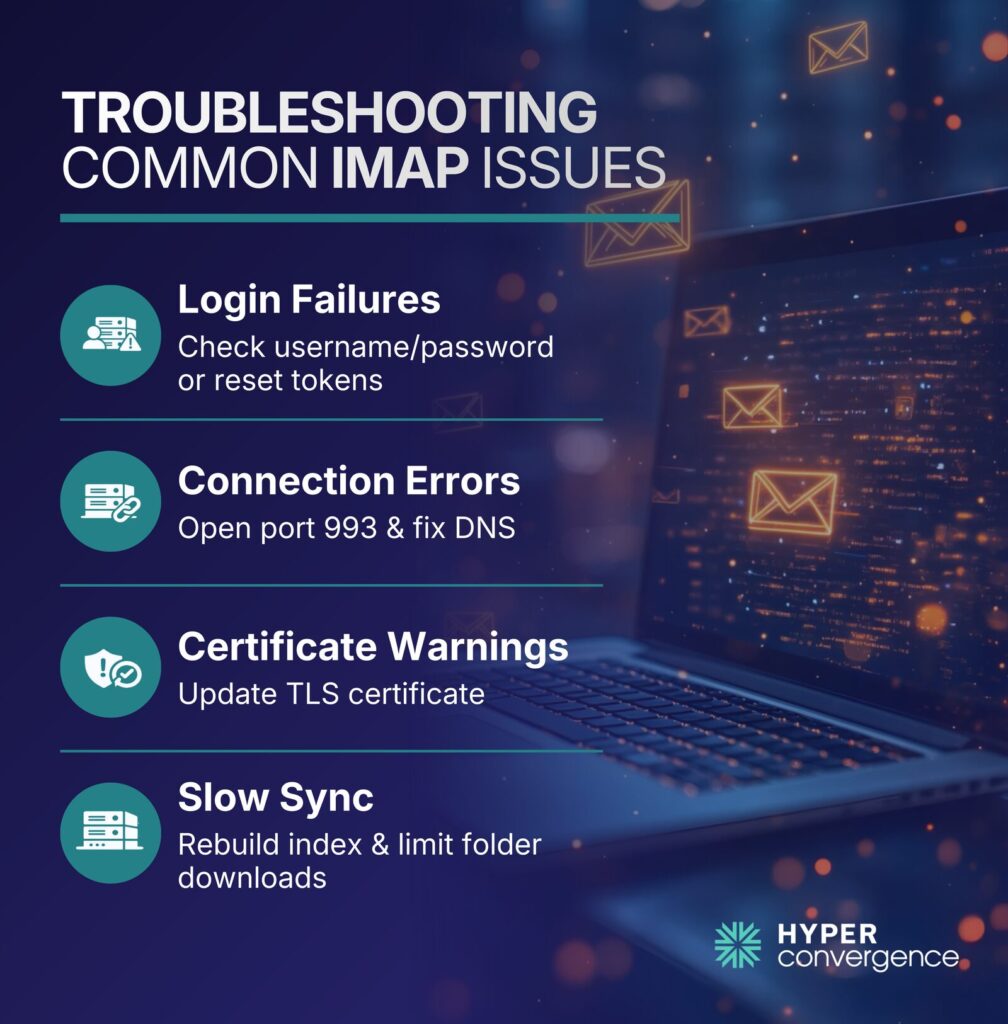
Login Failures
These often happen due to incorrect usernames or passwords, expired OAuth tokens, or disabled accounts linked to an email account. Troubleshoot by verifying credentials, resetting tokens, and ensuring accounts are active. Also, review imap settings inside the email client to confirm the correct authentication configuration.
Connection Errors
Firewalls blocking port 993 or misconfigured DNS can prevent client-server connections under the imap protocol. Check firewall rules and verify DNS resolution to the correct server hostname.
Certificate Warnings
Expired or mismatched TLS certificates trigger security alerts in email clients. Renew certificates and ensure the hostname matches the server certificate used by the internet access message protocol service.
Slow Synchronization
Large mailboxes or unoptimized indexes can delay syncing because imap stores emails on the server rather than only on a local device. Rebuilding the mailbox index and limiting simultaneous folder downloads often resolves this, especially when clients attempt to download messages in bulk.
These steps help maintain reliable IMAP access and prevent recurring errors across modern email protocols.
Choosing the Right IMAP Server Provider
Selecting a provider requires evaluation across multiple factors. When selecting an IMAP server provider, consider these key characteristics:
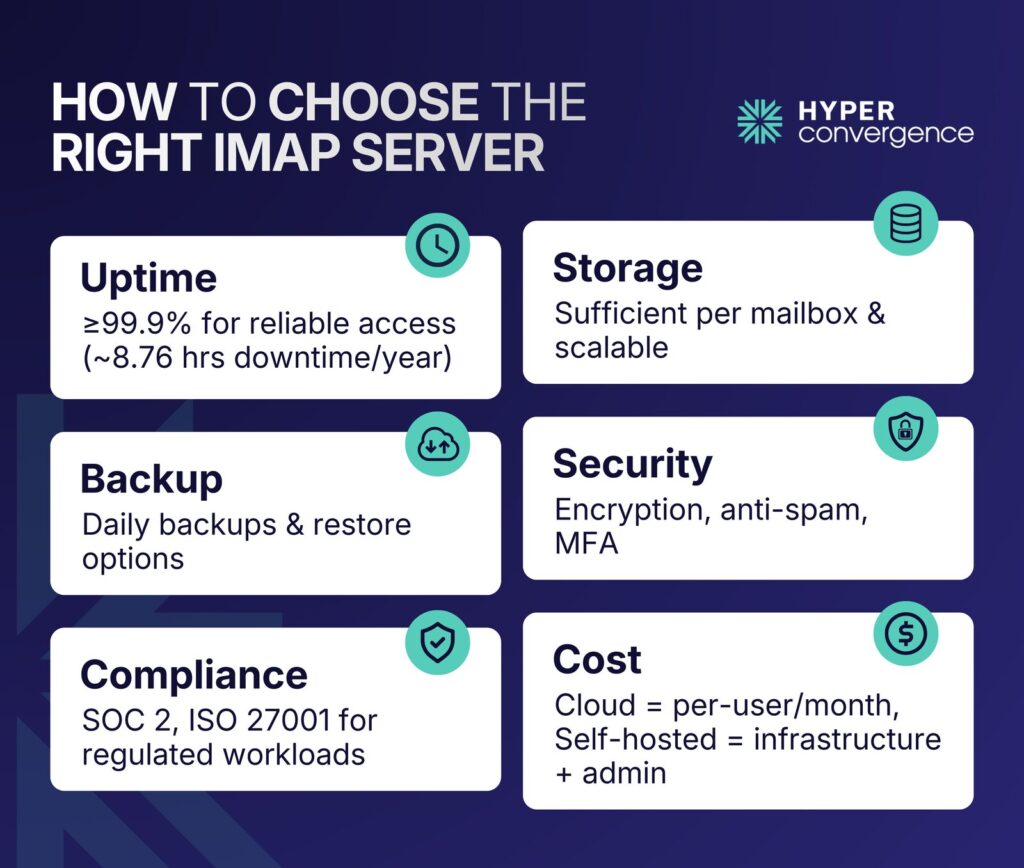
- Uptime Guarantee: Choose providers that offer at least 99.9% uptime, so email access remains reliable and does not suffer frequent interruptions. A 99.9% guarantee means about 8.76 hours of downtime per year. (source)
- Storage Capacity: Check how much storage is included per mailbox and whether it scales with growth. Some businesses operate under limited server storage, which may affect how many email messages can be retained.
- Backup Policies: Daily backups and point-in-time restores help protect data and maintain continuity of your email service.
- Security Features: Encryption, anti-spam filtering, and multi-factor authentication protect inboxes.
- Compliance Certifications: Look for providers with industry certifications such as SOC 2 or ISO 27001 to support regulated workloads.
Point to be noted, cloud server providers typically charge per user per month. Self-hosted systems require infrastructure investment and skilled administration.
Future of IMAP and Email Retrieval
Although modern APIs such as Microsoft Graph and Gmail API support deeper application integration, IMAP remains widely used across platforms. Its open standard design allows interoperability between vendors, clients, and hosting environments. Traditional desktop and mobile email applications still rely on IMAP for synchronization.
At the same time, newer protocols are emerging, including:
- JMAP: JMAP uses JSON over HTTPS and reduces constant polling. It was standardized in RFC 8620.
- API Based Access: Large providers offer proprietary APIs such as Microsoft Graph API and Gmail REST API.
Despite evolving APIs, IMAP continues to operate as a universal and dependable retrieval standard within the modern email protocols ecosystem.
Microsoft reports that Microsoft 365 serves over 400 million paid seats globally, many of which still support IMAP alongside API access.
Conclusion
IMAP servers form the backbone of synchronized email access. They provide centralized storage, multi-device access, and shared inbox capability.
They provide centralized storage, multi-device access, and shared inbox capability. In cloud and enterprise environments, IMAP remains a core component of mail infrastructure because it keeps email messages accessible without forcing full storage on a single local device.
Therefore, understanding how it works, how to secure it, and how to deploy it properly enables professionals to design secure, scalable, and reliable email systems while supporting modern distributed work environments.
Whether you manage enterprise infrastructure or individual mail systems, hopefully, this guide helped you develop a solid understanding of IMAP servers and how they interact with the broader email service ecosystem.
To deepen your expertise in cloud and messaging architecture, you can explore more blogs from Hyperconvergence.
FAQs
IMAP connects your email client to a remote mail server over an internet connection. The IMAP server keeps messages stored centrally while syncing updates across devices. This allows access to the emails on the server within the same mailbox without downloading everything locally.
Examples include Gmail (imap.gmail.com), Outlook.com and Microsoft 365 (outlook.office365.com), and Yahoo Mail. Many hosting service providers also offer custom IMAP configurations for business domains.
For Gmail accounts, the IMAP server address is imap.gmail.com, using port 993 with SSL/TLS for secure connections. IMAP must be enabled in Gmail settings before configuring access in any client.
For Microsoft 365 business accounts and Outlook.com personal accounts, the IMAP server is outlook.office365.com with port 993 and encryption enabled. However, Microsoft Outlook supports IMAP alongside modern API access for flexibility.
On iPhone, go to Settings → Mail → Accounts → Select your email account → Account settings to view the incoming server details. The hostname depends on your provider.
Check your provider’s documentation or account settings under incoming server details. Corporate domains often use custom email server names like mail.company.com.
Your IMAP password is usually your email account password. If two-factor authentication is enabled, you may need an app-specific password or use OAuth-based sign-in instead of your standard login credentials.
IMAP uses port 143 for standard access and port 993 for encrypted sessions. Port 993 is recommended to maintain secure connections and protect login credentials.
Yes, when configured with SSL/TLS encryption (port 993) and strong authentication such as OAuth or multi-factor authentication. Unencrypted connections should be avoided to protect login credentials and email data. Also, always use a good internet connection to prevent sync interruptions.
IMAP keeps messages on the server, while POP3 downloads them to one device and may delete emails from the server. IMAP is better for multiple devices and modern workflows.
Yes. IMAP allows users to access server-side folders across different devices. This helps organize emails efficiently without affecting mailbox consistency.
Yes. Since emails remain on the server, adequate storage space is necessary. Businesses should plan capacity based on mailbox size and user growth.